Server Management
Last reviewed: June 2, 2026
Overview
Let's take a look at what you can do in the Overview tab!
Server Name/Hostname Change
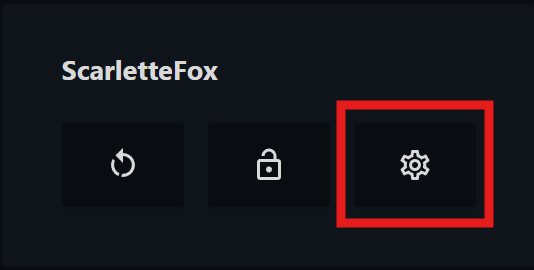
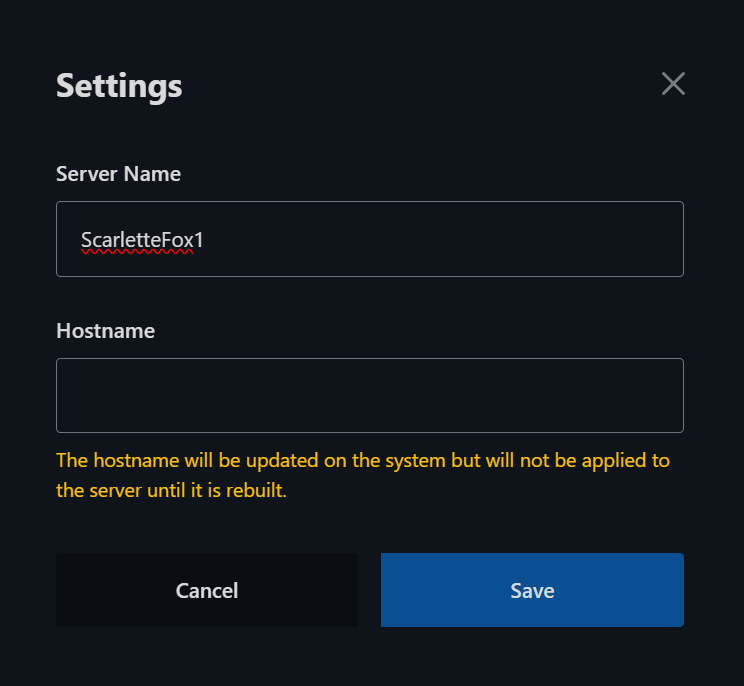
- Click the settings wheel just below the "Overview" tab, change your desired name(s), then click "Save"
info
This example shows a VPS Server that did not have a Hostname chosen when it was initially built
ScarletteFox -> ScarletteFox1
Statistics
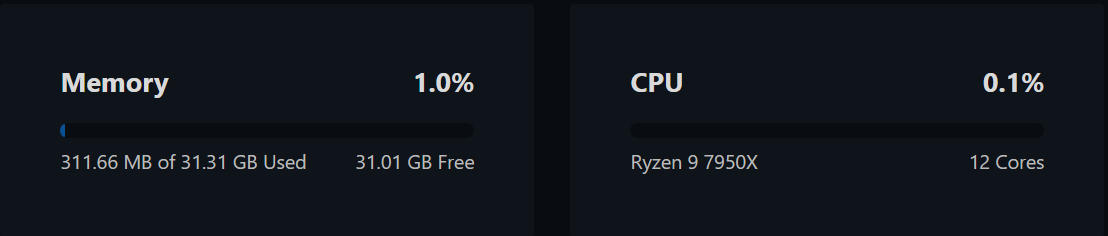
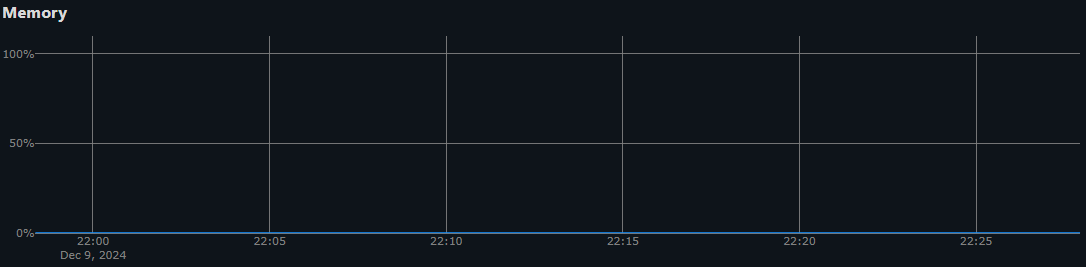
Memory & CPU Usage
- Displays your active Memory (RAM) & CPU usages
(Under the Statistics dropdown button)
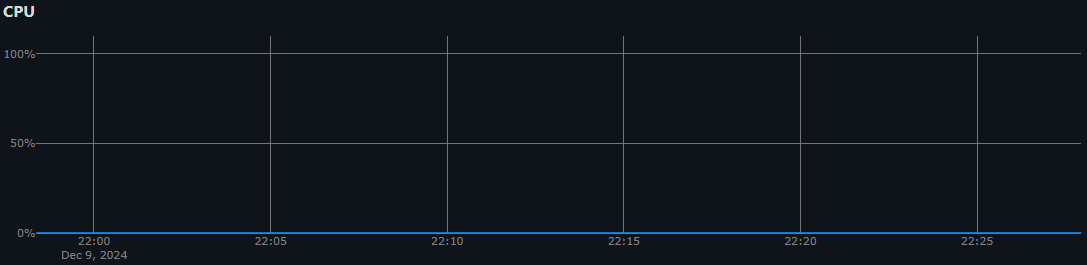
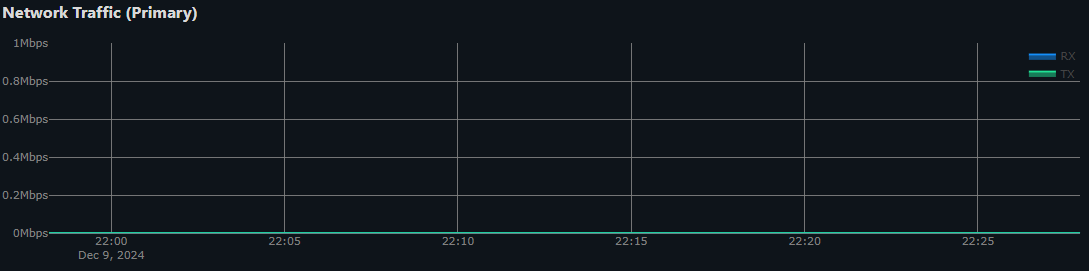
Network Traffic & Server Information
- Displays monthly traffic statistics (Inbound/Outbound, Total, Allowance, & Speed)
- We offer unlimited traffic! But it's always cool to see more of your stats
- Shows your server information such as; the date and time it was created, its system ID, primary IP, loader, RAM specs and server location.
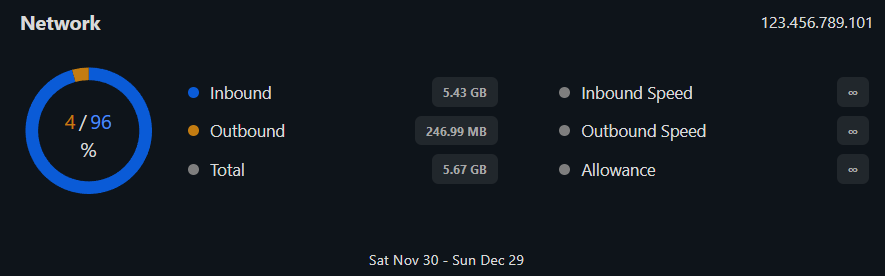
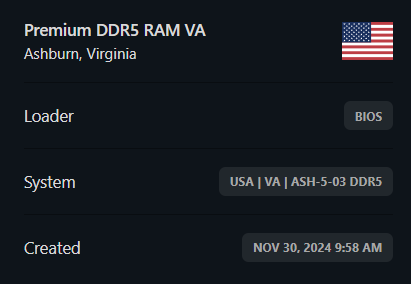
(Under the Statistics dropdown button)
Server Power Options
- You are able to:
- Shutdown
- Power Off
- Restart
- Rebuild
danger
DO NOT TOUCH THE BIG RED BUTTON UNLESS TOLD TO OR NECESSARY.

Protect Server
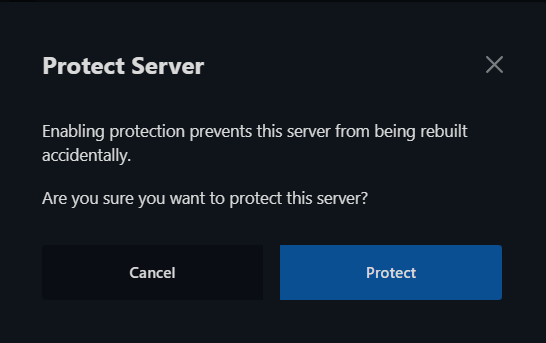
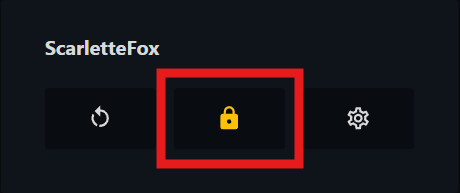
- Enabling protection saves you from the consequences of the big red button (Rebuild, see above) being clicked by accident and accidentally rebuild your server!
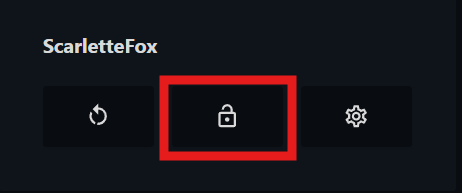
- Click the padlock just below the "Overview" tab and when prompted click "Protect"
tip
We recommend turning this on until otherwise told to click on Big Red! (Rebuild)
Rebuild (the Big Red Button)
danger
If you choose to proceed and click "Rebuild", it will DELETE ALL SERVER DATA!!