VPS - Connect to Server Using Visual Studio Code
Last reviewed: June 2, 2026
info
Please note that to follow this guide you must complete some pre-requisite steps to ensure that your VPS has a supported SSH Server. Make sure to install Open SSH on both your local machine AND your VPS!!!
- Windows OS: follow this Microsoft guide.
- Ubuntu/Debian OS: follow this Ubuntu guide.
Follow these quick steps to connect to your VPS using Visual Studio Code:
Open Your VPS in Your VPS Dashboard
- Log into your billing portal, go to "My Services," locate your VPS, and open its VPS Dashboard by clicking "Manage" then "Open Control Panel."
- Go to the "Network" tab to have your server's IP for later.
Ensure OpenSSH is installed & running on your VPS & Local machine
For Windows OS:
- Make sure Open SSH is running by entering the following command in PowerShell:
ssh your-vps-username@your-vps-ip
- Enter your password when prompted (the password will be invisible as you are typing it!)
Install the Remote SSH Extension on Visual Studio Code
- Open your Visual Studio Code application
- Navigate to the Extensions: Marketplace menu
- Search "Remote SSH"
- Install the first option (Open any folder on a remote machine using SSH...)
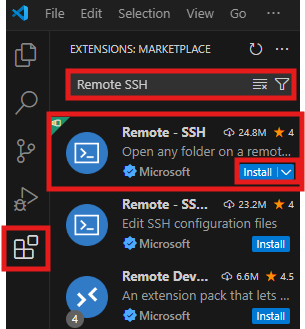
Add Your VPS in Remote Explorer
- Navigate to the Remote Explorer menu
- Click the "New Remote" plus button to add your VPS's SSH Target
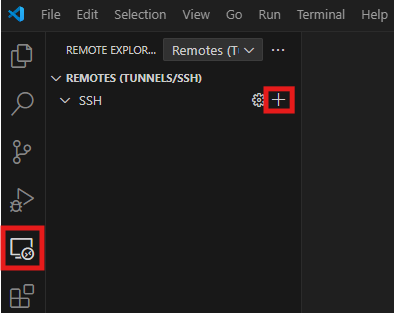
- A pop-up will appear for you to enter your SSH key within the text box. Enter the following:
ssh user@[Your VPS IPv4 Address]
**Replace "user" with the username you use to log into your VPS**
(Standard: root = Linux, Administrator = Windows)
- Hit "Enter" on your keyboard, then hit "Enter" again to select the first option.
- First option is typically C:\Users\[your username]\.ssh\config
Connect to Your VPS
- Under the SSH Targets drop-down, you will see your VPS Server's IP has populated
- Right-click your IP and select "Connect to Host in Current Window"
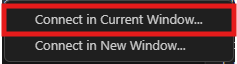
- A pop-up will appear with a list of Operating Systems, select the OS that you built your VPS with.
- A new pop-up will appear, prompting you to enter your password. Enter the password that you would use to connect to your VPS Server then press "Enter" on your keyboard.
Opening Your Folder
- Navigate up to the Explorer menu, above the Search magnifying glass
- Click "Open Folder"
- Select the Folder that you want to are wanting to work on
- Click "OK"
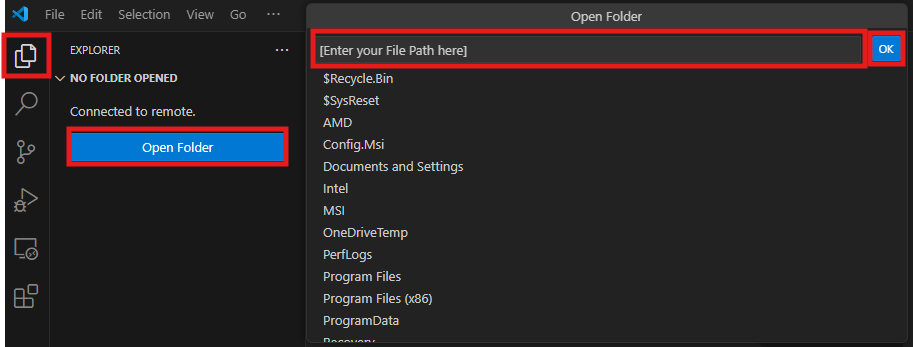
- You will be prompted to enter your password again, do so and hit "Enter".
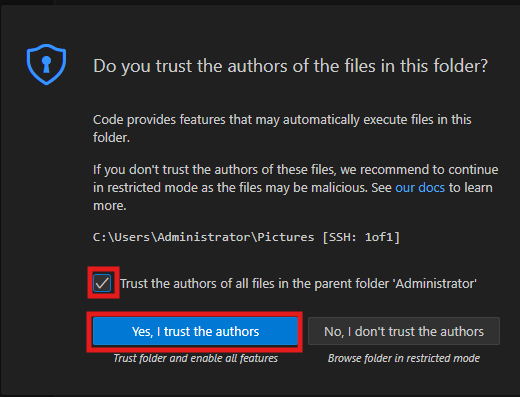
- A pop-up will appear to confirm that you trust the author of the files in the folder, click "Yes, I trust the authors" and click the check box so the window doesn't appear everytime you want to edit this file.
tip
Congratulations, you did it! You can now connect to your VPS using VSC and edit, upload, or even run terminal commands on your VPS Server!
To Disconnect
- Click on the "File" tab and search for "Close Remote Connection" or "Close Folder"
To Reconnect
- Navigate to Remote Explorer (like in Step #4), locate your IP under the SSH Targets drop-down
- Under your VPS Servers IP, the folder that you opened previously will have populated. Right-click the folder and select "Open on SSH Host in Current Window."
- Enter your password when prompted.