Deploy your Operating System
Last reviewed: October 19, 2026
Step 1
Log into your Client Area to begin.
In Your Active Products/Services on the Client Area home page, or in My Services, click Manage beside your VPS service.

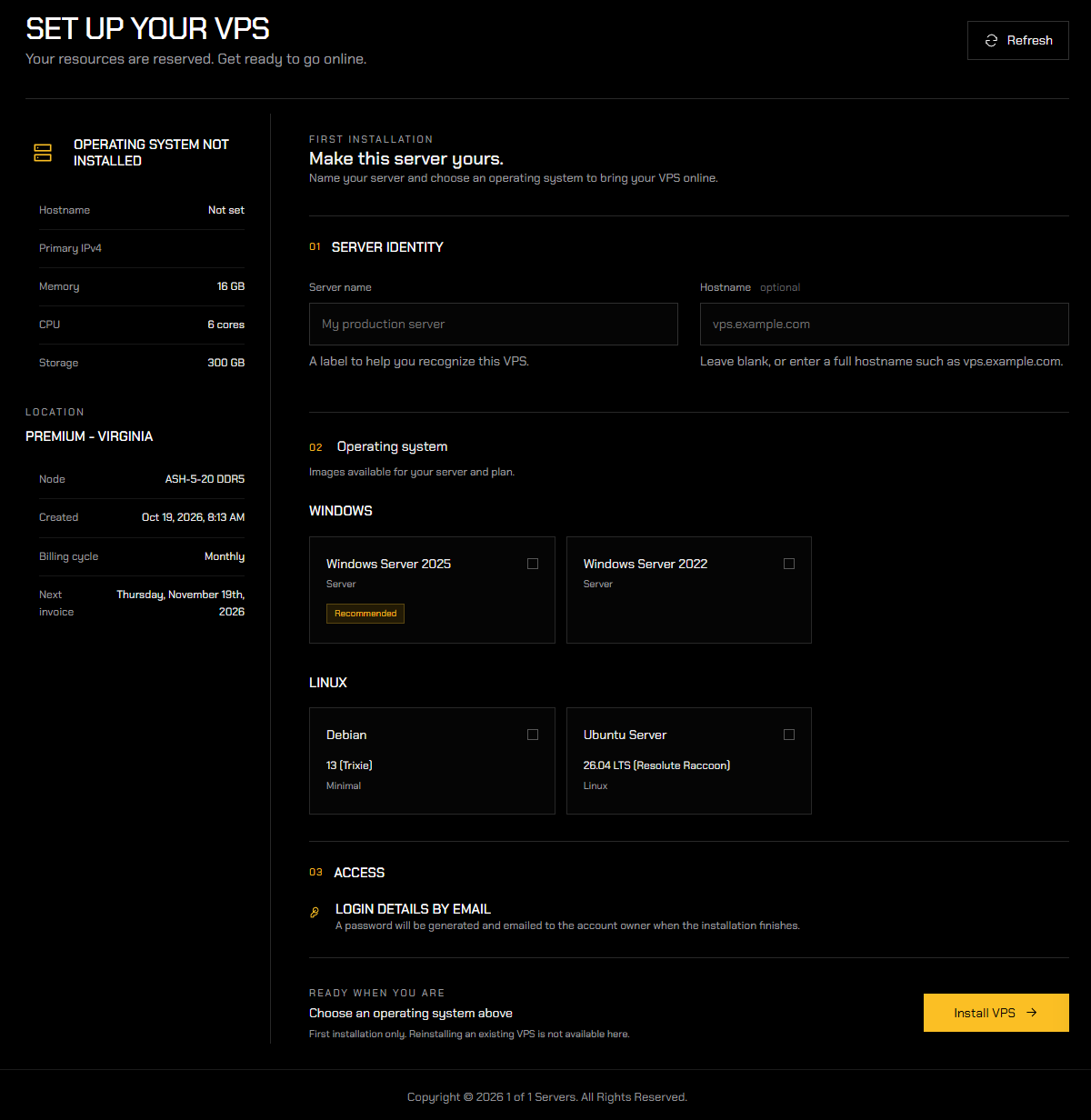
You will be taken to a single setup page where you deploy your VPS. Your server's specifications and location are shown on the left, and the setup form is on the right.
Step 2
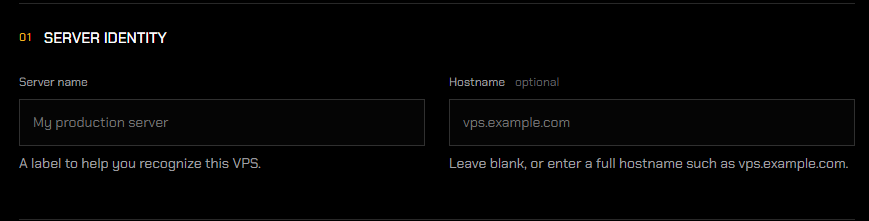
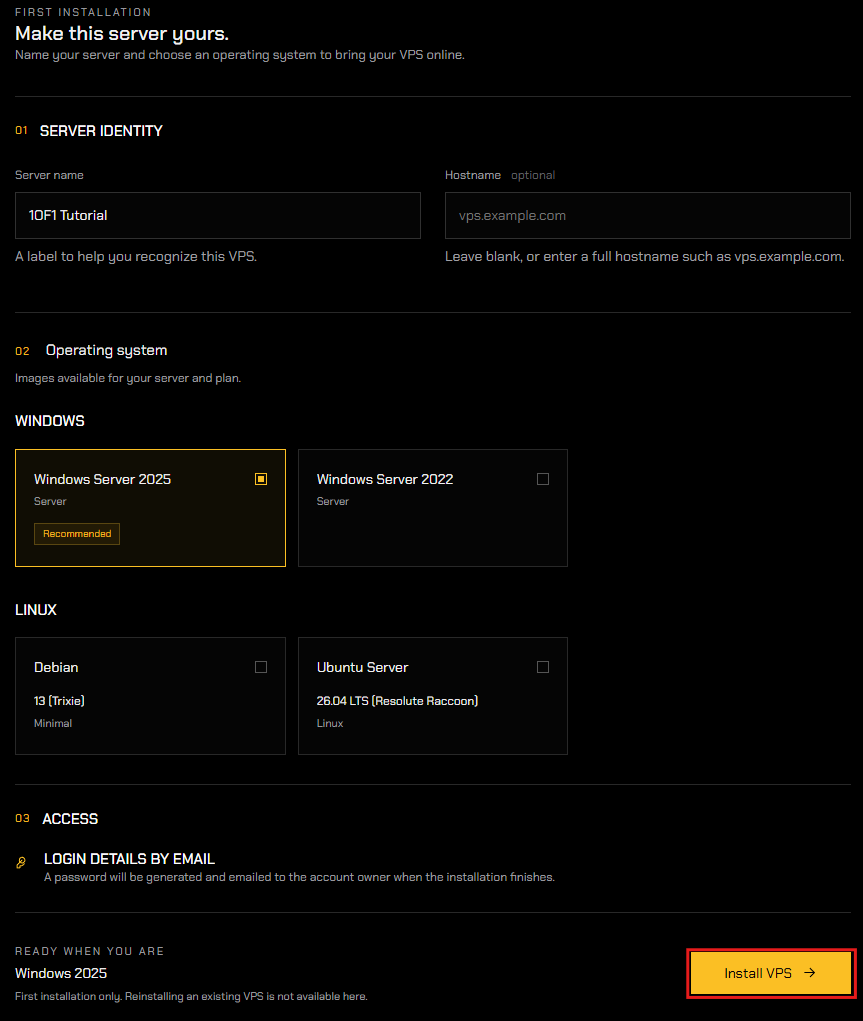
Name your VPS in the Server Identity section.
Server Name
- Give your server a name to easily identify it in your account, we recommend your typical username or the name of the project you're currently working on. Don't worry, it can be changed later!
Hostname (OPTIONAL)
- Enter a Hostname, this is optional, we recommend you skip it! For easier identification of your VPS on a network, not just on your account (it can be the same as your server name).
Not to worry, this can also be changed later!
Step 3
Select the operating system to install on your VPS.
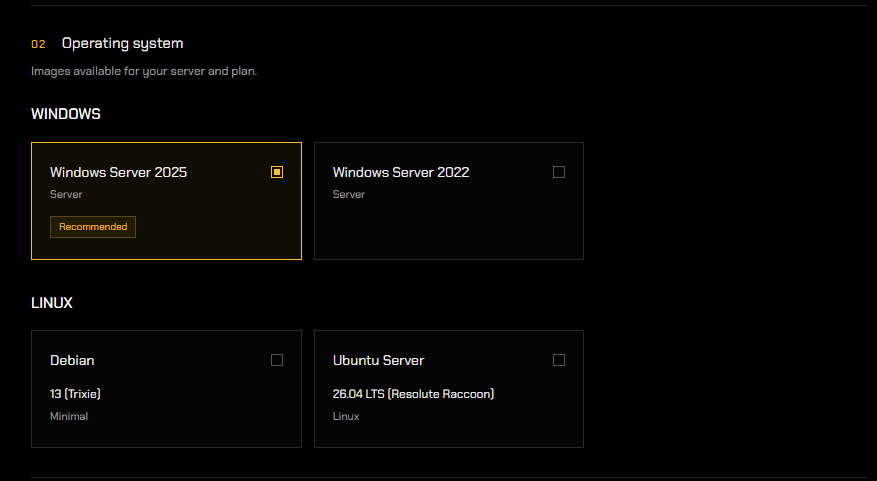
Windows - We strongly suggest choosing this option, it provides a user-friendly and seamless connection process to your VPS through Windows' Remote Desktop. It also delivers the most optimal experience when locally hosting your FiveM city.
Windows Server 2022 is nearing the end of its support life. We recommend selecting Windows Server 2025.
Debian
This option is recommended for experienced users who are familiar with Linux, and those endeavoring to host websites. It is tried and true and a more stable and flexible Linux option, it is lightweight making it run better than Ubuntu on older hardware, however, the software is older and less user-friendly compared to Ubuntu.
Ubuntu
This option is recommended for experienced users who are familiar with Linux and sudo commands, and those endeavoring to host websites. If you're not confident in using Linux, we advise against selecting this option.
SSH Keys (Debian and Ubuntu)
If you select Debian or Ubuntu, you must add an SSH key in the Access section:
- Existing key - if you already have a key on file, tick it to use it for this installation.
- New key - click Add Key, then:
- Enter a Key name to help you recognize it (for example, My workstation).
- Paste your key into the SSH public key field.
- Click Save Key, then tick the new key to select it.
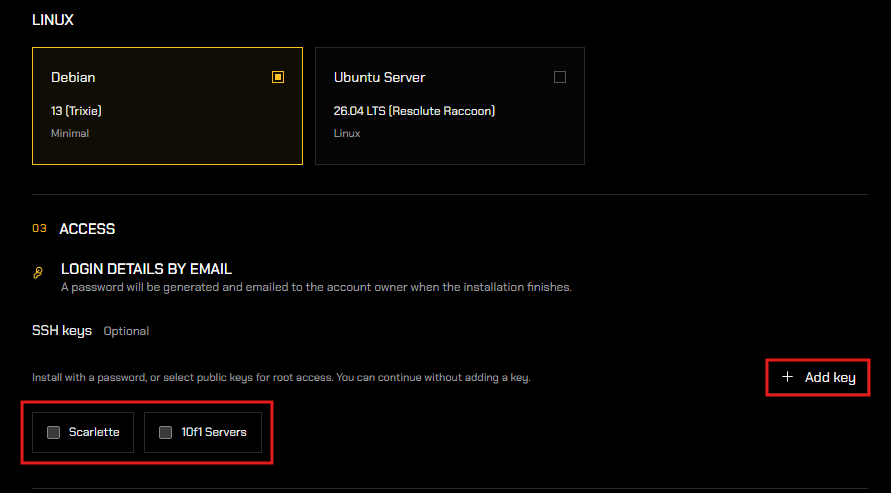
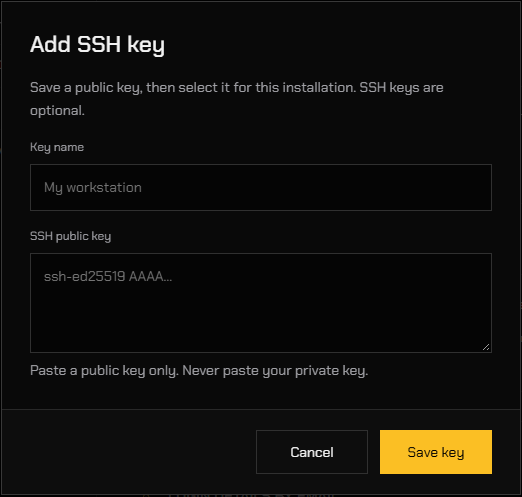
Only paste your public key. Never share or paste your private key.
Need a key? See Creating SSH Key for VPS Install.
Step 4
Install your VPS.
- Once you have selected your operating system, click Install VPS.
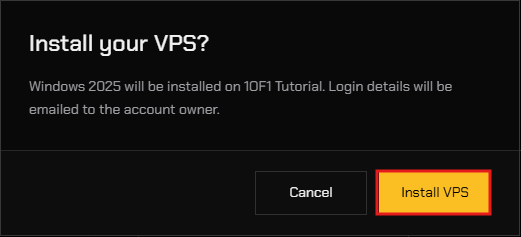
- A window appears to confirm your choice. Click Install VPS again.
- You will be taken to a new page that shows your installation's progress. You can leave this page and return later, the installation continues in the background. Once the installation is complete, you will receive an email containing your login credentials.
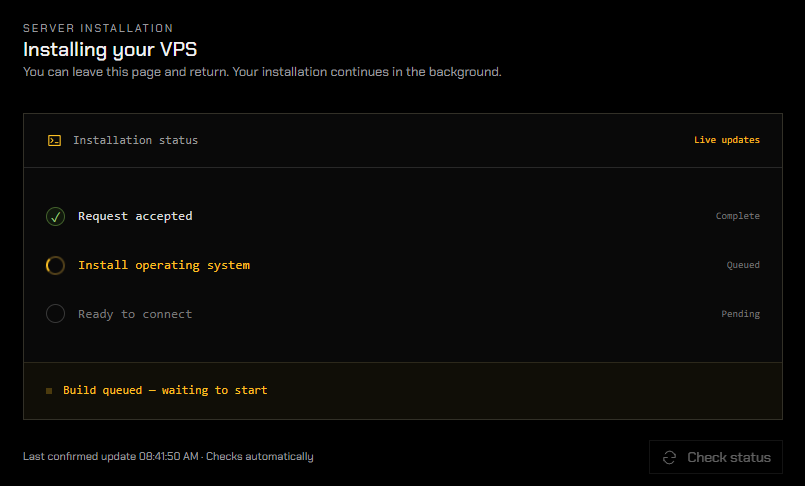
You will receive an email within 3-5 minutes titled "Your VPS Server is Ready at 1of1 Servers!" that contains your initial login details for your VPS