Logging into Remote Desktop
Last reviewed: June 2, 2026
Windows Remote Desktop is what enables you to log into your dedicated or VPS servers.
Locating your login credentials for RDP:
-
To access your VPS all the information is found on your VPS Dashboard.
-
To access your Dedicated Server all the information is found on your welcome email.
If you have not received it yet, check your inbox/trash/junk/ads/spam folders.
If you chose to install the Windows 2022 OS and have located your login credentials via the email from 1Of1 Severs, please proceed to the next steps.
- Use your Windows Search tool and type in "Remote Desktop Connection". Open the application and fill in your login credentials provided in your email.
- Checking the "Allow me to save credentials" option will enable faster logins in the future by remembering your login information.
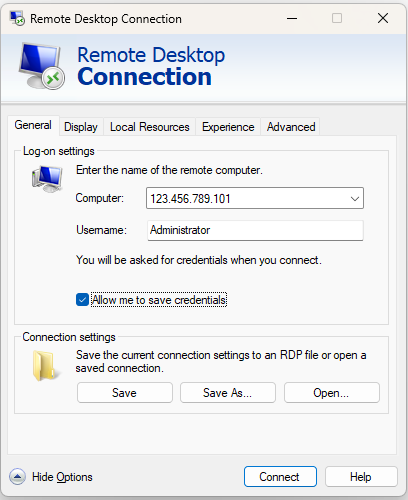
- Cycle through the tabs and mimic the following options for optimal performance:
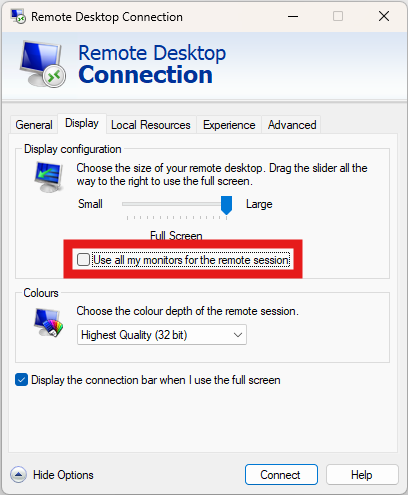
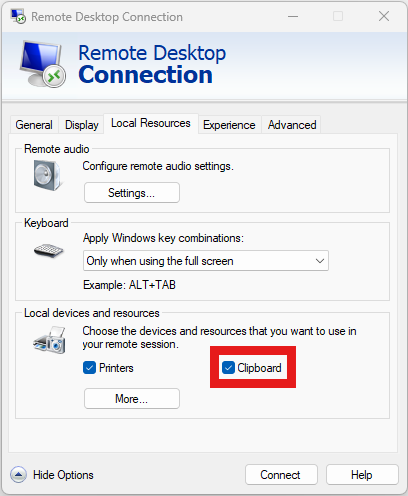
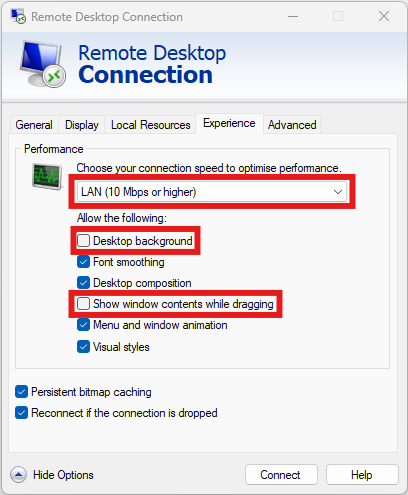
- Once you have entered your credentials and selected your desired options, click Connect. You will then be prompted to enter your password.
- Another prompt may appear, check the box for "Don't ask me again for connections to this computer" then click "Yes".
Congratulations! If all steps were followed, all i's were dotted and t's were crossed, you would now be successfully logged into your VPS Server!
To Disconnect or Logout:
- You can simply click the "X" on the blue taskbar at the top of your screen, or;
- You can follow the same process as shutting down your computer and click the Windows logo at the bottom left of your screen and click "Disconnect".
Additional Resources
Your new powerful VPS has been setup. We strongly recommend taking a look at the following guides to help you understand a lot of the options we offer.
Please Note:
Do not use VNC to access your server for work. Use Remote Desktop to connect to your live server.
By default, your username is Administrator.
Your VPS password is the one you received in your email. If you need to reset it, follow the instructions provided here.
We do not provide support for any FiveM related scripts or issues.
- Please note that we do not provide support for any FiveM related scripts or issues. We kindly ask that you refrain from requesting assistance with game-related issues within your VPS.
- Our support services are strictly for server-related concerns, including issues such as difficulty connecting to Remote Desktop, lack of internet connection, and slow internet speed.