Users
Last reviewed: October 3, 2026
The Users page lets you give other people access to your server's dashboard, such as co-owners, developers, or staff. You choose exactly which permissions each user has.
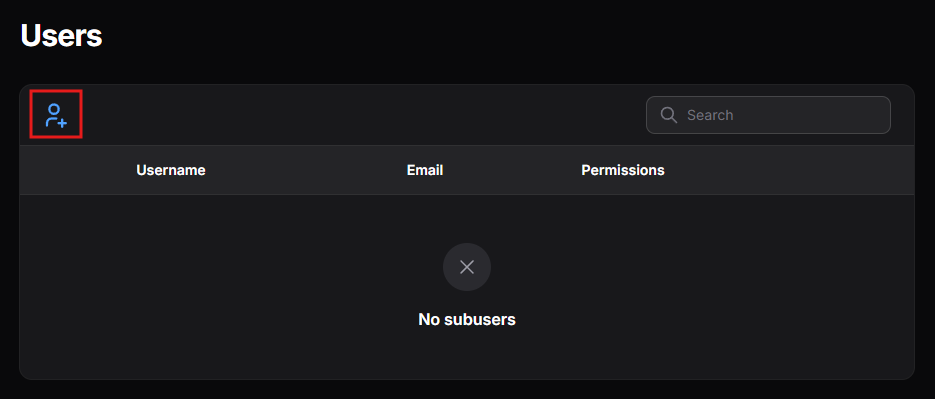
The page lists each user's username, email, and permissions. The number beside Users in the menu shows how many users currently have access.
Only add people you trust. Even limited permissions can be used to delete files, backups, or other server data.
Dashboard access is separate from in-game permissions. Adding someone here does not make them an admin or operator in-game, and making them an in-game admin does not give them dashboard access.
Adding a User
- Click the Add User icon at the top left of the Users page.
- Enter the user's email address.
- Set their permissions. Permissions are grouped into tabs: Control, File, Backup, Schedule, User, Database, Allocation, Activity, Mounts, Startup, and Settings.
- Each tab describes what its permissions cover. Hover over or scroll the tab bar to see all of them.
- Tick individual permissions, or click Select all to grant every permission in the current tab.
- Click Assign all to grant every permission in every tab.
- Click Invite.
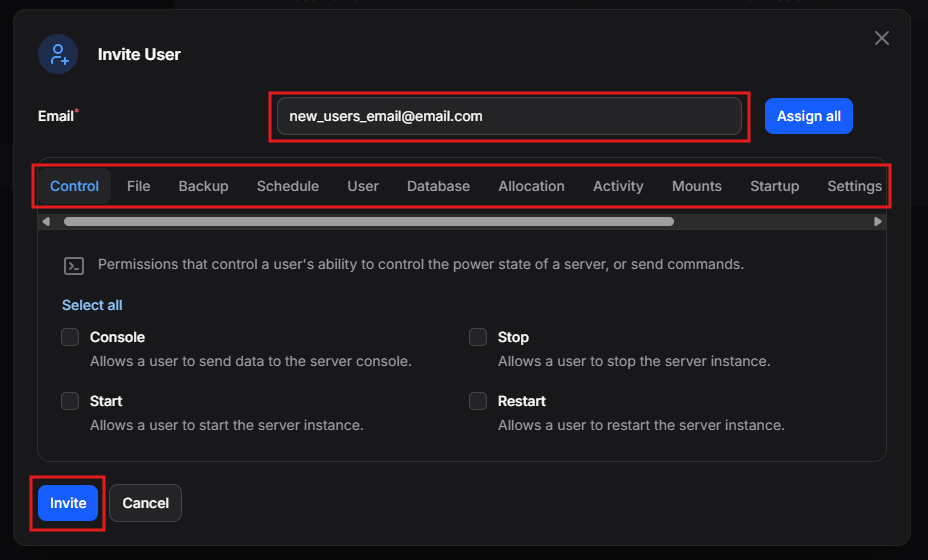
If the person does not have a dashboard account yet, they will receive an email to create one.
Grant only the permissions a user needs. For example, a user who only restarts the server needs the Control permissions, not File or User access.
Changing a User's Permissions
- Click the edit (pencil) icon beside the user.
- Select or deselect permissions.
- Save your changes.
Removing a User
- Click the delete (trash) icon beside the user.
- Confirm the removal.
The user loses access to this server immediately.