Settings
Last reviewed: October 3, 2026
The Settings page shows your server's details and plan limits, along with your SFTP login, the option to reinstall, and backup notifications.
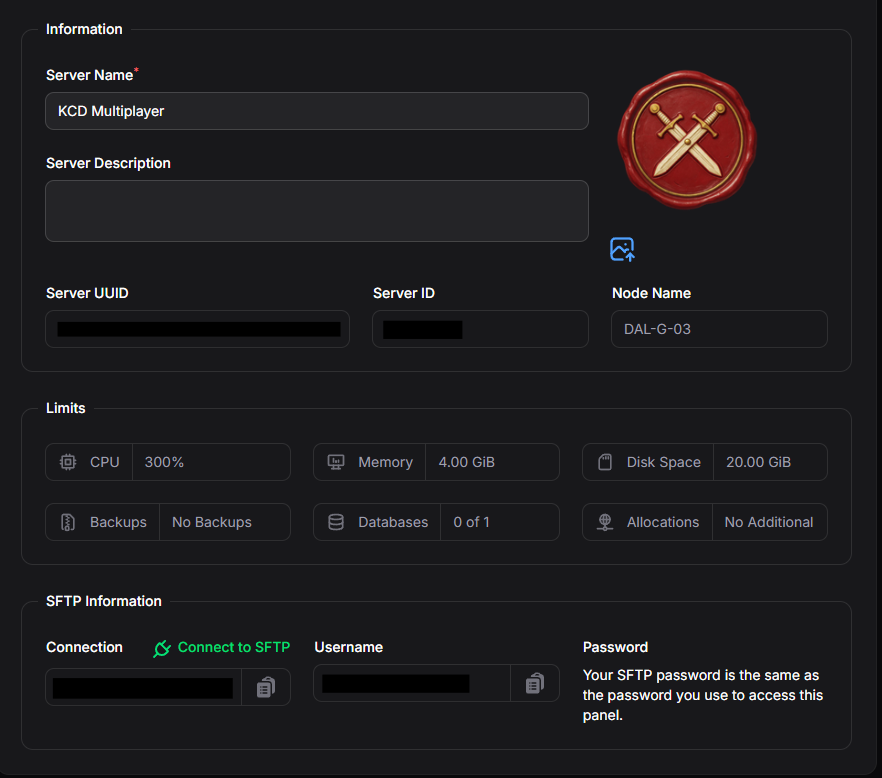
Information
- Server Name - the name shown in your Game Server Dashboard. This does not change your in-game server name, which is set on the Startup page.
- Server Description - an optional description to help you tell your servers apart.
- Server Icon - click the image icon below the picture to upload your own server icon.
- Server UUID and Server ID - your server's unique identifiers. Our support team may ask for these.
- Node Name - the machine your server is hosted on.
Limits
The resources included in your plan: CPU, Memory, Disk Space, and how many Backups, Databases, and additional Allocations your server can have.
SFTP Information
Only use SFTP if you are an experienced user or have created a backup of your server. Managing files directly risks data corruption or loss.
SFTP gives you a secure connection to your server's files. It is much faster than the Files page for large uploads. Use the details below with a program like FileZilla or WinSCP:
- Connection - the address and port to connect to. Click Connect to SFTP to open it in your default SFTP program.
- Username - your SFTP username.
- Password - the same password you use to log in to the Game Server Dashboard.
Use the copy buttons beside each field to copy the details.
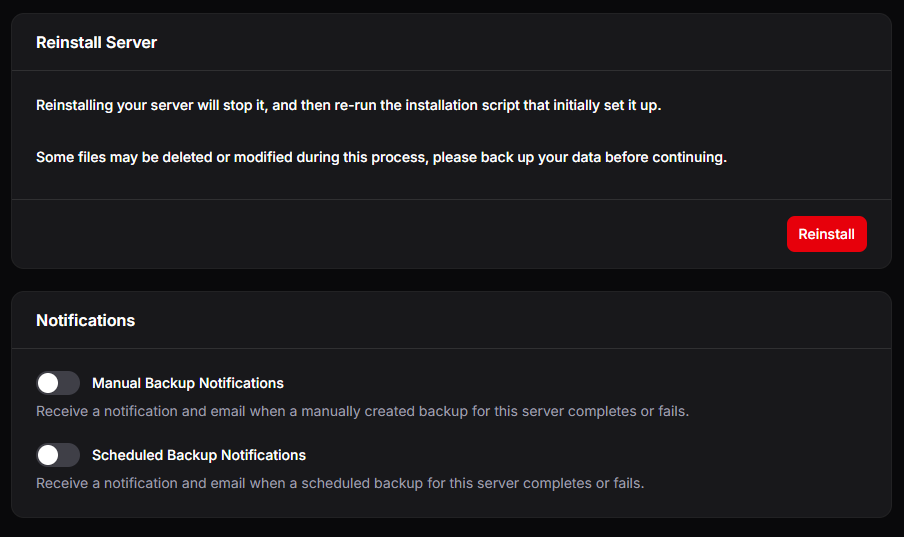
Reinstall Server
Reinstalling may delete or modify your server's files. Always create a backup first (see the Backups guide).
Reinstalling stops your server and re-runs the installation script that originally set it up. Use this if your server's files are broken, or after changing a variable that requires a reinstall.
- Click Reinstall and confirm when prompted.
- Wait for the installation to finish in the Console, then start your server.
Notifications
Turn these on to receive a dashboard notification and an email when a backup completes or fails:
- Manual Backup Notifications - for backups you create yourself.
- Scheduled Backup Notifications - for backups created by a schedule.