Databases
Last reviewed: October 8, 2026
We strongly recommend not using this feature unless you have created a backup of your current server (you can learn how to do that in the Backups guide), have shut down your server before using it, and/or are an experienced user.
Changing your server's contents risks losing or damaging your existing data. You could cause irreparable damage, use it with caution!
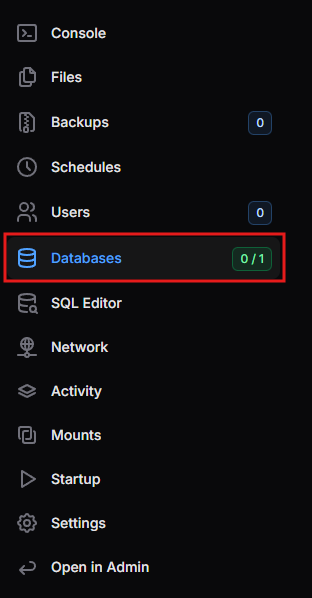
The Databases page allows you to create MySQL databases for your server, for plugins or mods that need one. The number beside Databases in the menu shows how many databases you have created out of how many are available on your plan (for example, 0 / 1).
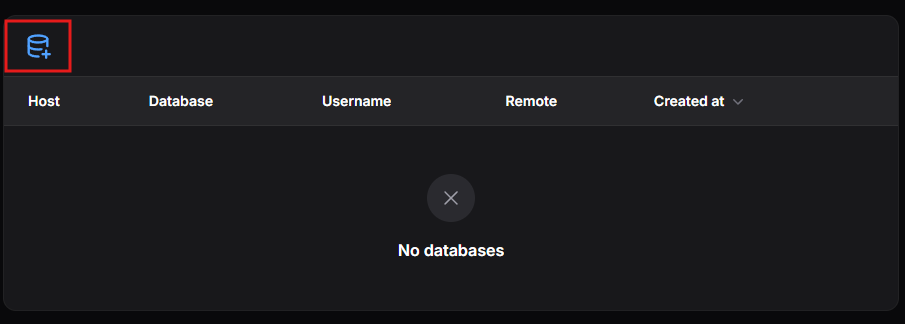
The page lists each database's host, name, username, remote (allowed connections), and creation date.
Creating a Database
- Open the Databases page from the menu on the left-hand side.
- Click the Create Database icon at the top left of the page.
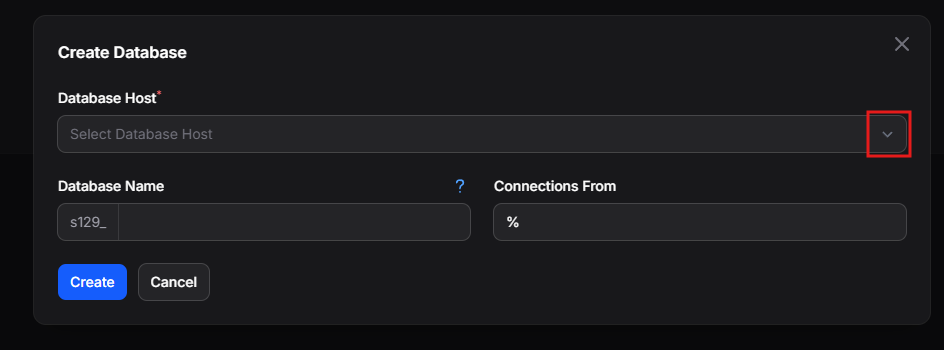
- Click the Database Host dropdown.
- Select the database host from the list, then click Create.
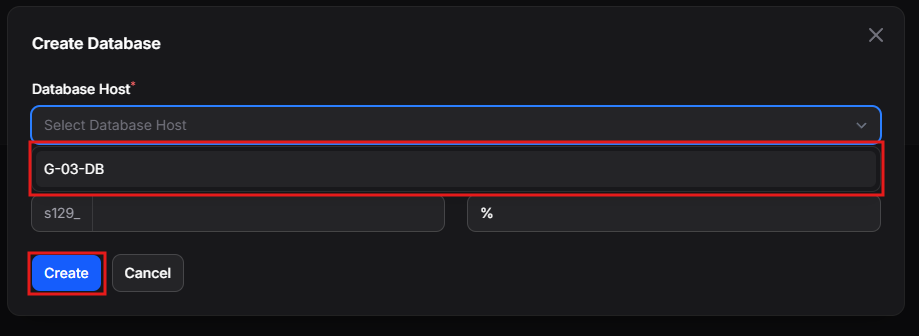
The other fields are optional:
- Database Name - a name to identify your database. A prefix unique to your server (for example,
s129_) is added automatically. Leave it empty to generate a name. - Connections From - the IP address allowed to connect, using standard MySQL notation. Leave it as
%to allow connections from anywhere.
Once you reach your plan's database limit, the Create Database icon turns red and no more databases can be created.
Each database in the list has three icons on the right: view (eye), delete (trash), and Database Editor.
Database Editor
The Database Editor lets you view and edit your database directly from the dashboard, without installing a separate database tool.
- Click the Database Editor icon (the blue database icon) beside your database.

- The Database Editor opens on its own page.
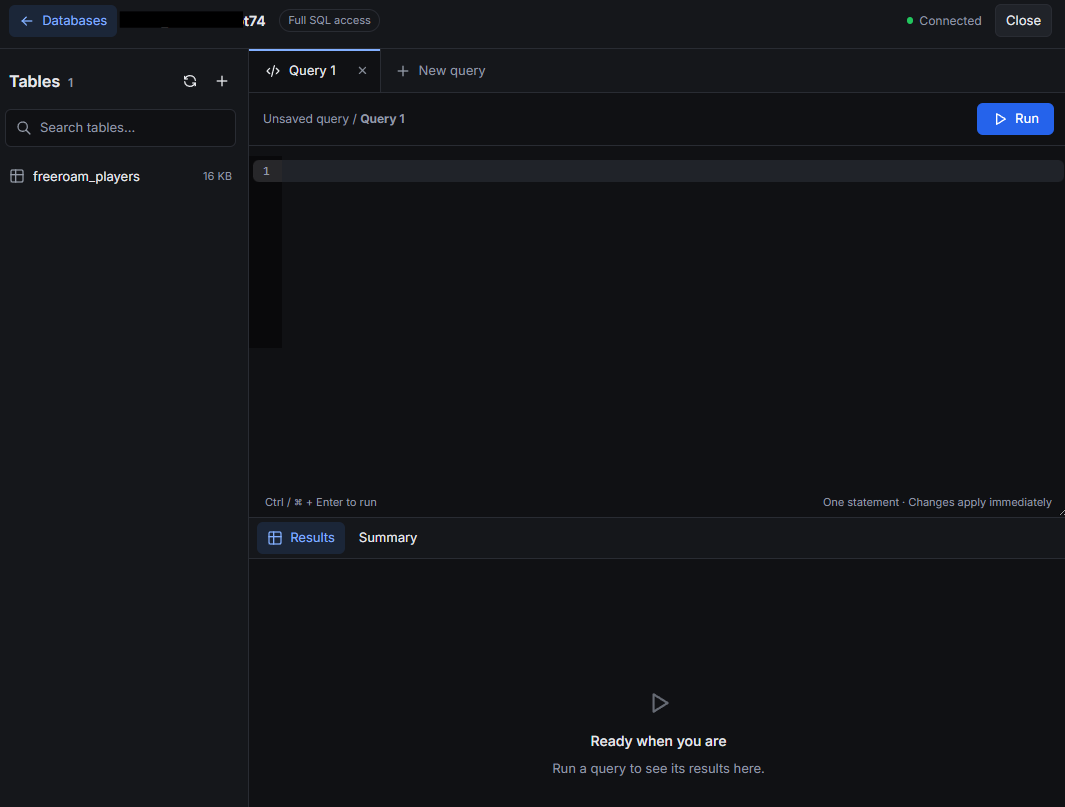
The Database Editor includes:
- Top bar - the database you are editing, your access level (for example, Full SQL access), and the connection status. Click Databases or Close to return to the Databases page.
- Tables - every table in your database, along with its size. Use the search box to find a table, the refresh icon to reload the list (for example, after your server creates new tables), and the + icon to create a new table.
- Query editor - write and run SQL queries. Click Run, or press Ctrl + Enter (⌘ + Enter on Mac), to run your query. Each query runs one statement at a time.
- Query tabs - click New query to open another tab, so you can work on several queries at once.
- Results and Summary - after running a query, view the rows it returned in Results, or an overview of what it did in Summary.
Changes made in the Database Editor are applied to your database immediately. Create a backup and stop your server before editing data.
Viewing Connection Details
Click the eye icon beside a database to view its connection details:
- Endpoint (host and port);
- Database name;
- Username;
- Password, and;
- JDBC connection string, which is handy for Java-based games like Minecraft.
You can also rotate the password to generate a new one. Remember to update any configuration files using the old password!
Deleting a Database
- Click the trash icon beside the database and confirm when prompted.
Deleting a database permanently removes all of its data. This cannot be undone!