Console
Last reviewed: October 3, 2026
The Console will be your favourite, most handy tool. It lets you control your server in real time and is the first page you land on when you open your server.
Power Options
At the top of the page you will find the power buttons for your server:
- Start - boots your server up.
- Restart - stops your server and starts it again.
- Stop - safely shuts your server down, saving its progress.
- Kill - forcefully stops your server. Only use this if your server is stuck and will not stop normally, as unsaved progress may be lost.
Console Terminal
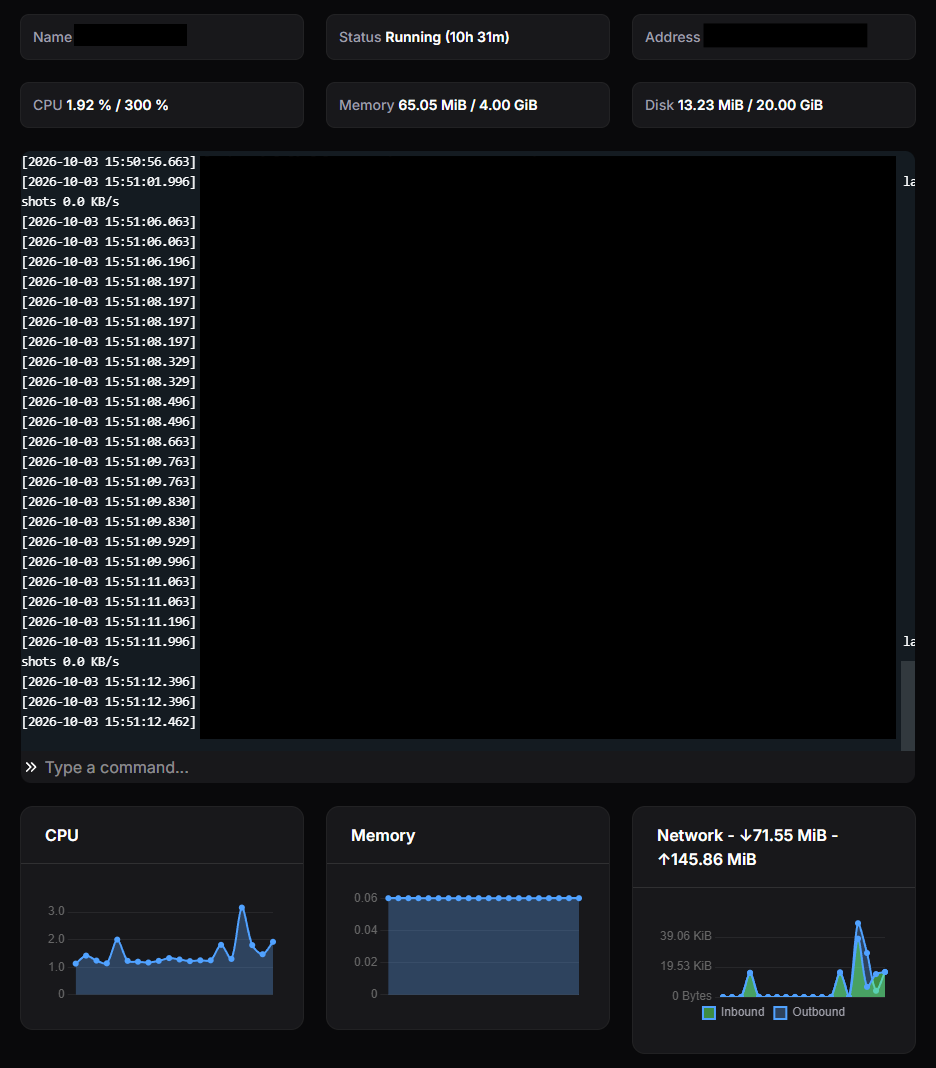
The terminal displays your server's live output as it runs. You can type commands into the input box at the bottom of the terminal and press Enter to send them straight to your server.
- Use the Up and Down arrow keys to cycle through commands you have previously sent.
Server Info
Above the terminal, you will find cards showing your server's:
- Name;
- Status, along with how long it has been running;
- Address (IP and port) for connecting;
- CPU usage out of your limit;
- Memory usage out of your limit, and;
- Disk usage out of your limit.
Resource Graphs
Below the terminal, live graphs display your server's CPU, Memory, and Network (inbound and outbound) usage. These graphs update in real time and can help identify issues with your server while it is running.